Set Up RStudio
Install the software and open the starter project
R performs the statistical calculations. RStudio gives you a place to write code, run scripts, inspect data, and view graphs. You need both programs.
Install R And RStudio
Install the programs in this order:
- Download and install R.
- Download and install RStudio Desktop.
- Open RStudio once both installations are complete.
For a more complete tour, including current download links, see Posit’s Get Started guide.
Download And Unzip The Starter Files
Download the starter files.
The file arrives as a compressed .zip folder. Extract its contents before opening the project:
- On Windows, follow Microsoft’s zip and unzip instructions.
- On a Mac, follow Apple’s zip and unzip instructions.
Move the unzipped folder somewhere easy to find, such as your Documents folder. Keep all files and folders inside it together.
Open The Project
Begin each work session by opening exploring-statistics-r.Rproj. Opening the project first helps R find the data and scripts used in the workbook.
- Open RStudio.
- Choose File > Open Project….
- Select
exploring-statistics-r.Rprojinside the unzipped starter folder. - In the Output pane, select the Files tab.
- Confirm that you can see folders named
data,resources, andscripts.
Find Your Way Around RStudio
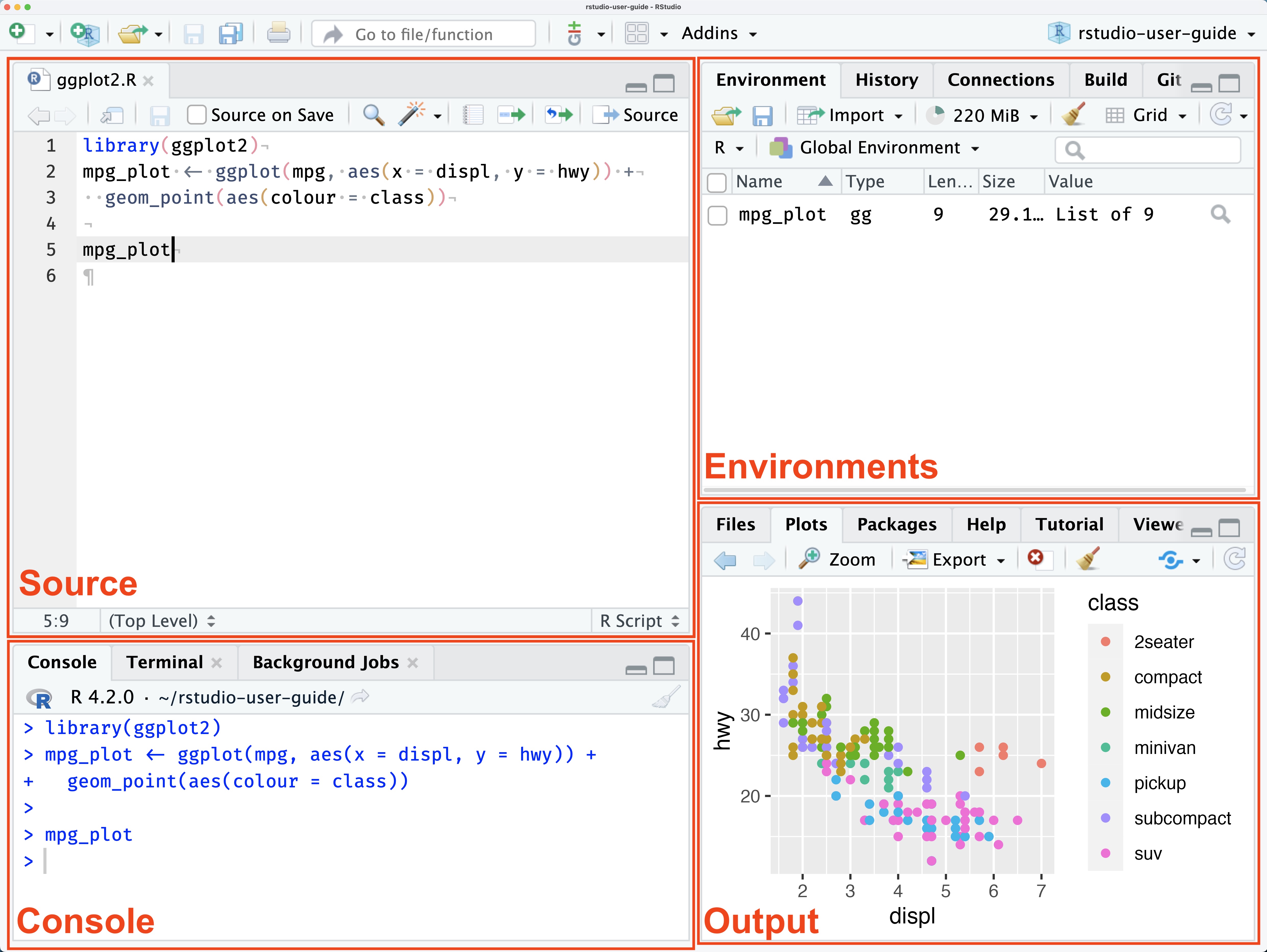
| Pane | What you do there |
|---|---|
| Source | Read, edit, and run .R scripts. |
| Console | See commands run, messages, and printed results. |
| Environment | See the objects currently available in R. |
| Output (Files, Plots, Packages, Help, Viewer) | Browse files, view graphs, review packages, read help, and preview output. |
You do not need to remember every tab. Most workbook activities use the Source pane, Console, Environment, and the Files and Plots tabs in the Output pane.
Check Your Setup
Before continuing, confirm that:
- RStudio is open;
- the project name appears in the RStudio window;
- the Files tab shows the
dataandscriptsfolders; and - you have not opened a second copy of the starter folder from inside the
.zipfile.
Next, use Run Your First Script to check the data and learn how RStudio responds when you run code.